If you've ever found an article worth sharing, copied its headline, rewritten the description, searched for a better image, and then manually added everything to your newsletter, you know how much time content curation can take.
That's why we've refreshed the Feedotter bookmark!
The updated bookmark makes it easier to grab content from anywhere and get it ready for your newsletter. With text highlighting, smart title and description suggestions, image selection, and automatic URL cleanup, you can save everything to your Content Queue in just a few clicks.
Here's a closer look at what's new and how it works.
Save Content From Almost Anywhere
The Save to Feedotter bookmark works from your browser's bookmarks bar. When you come across an article, blog post, event, or other content you'd like to include in a newsletter, just click the bookmark.
Feedotter pulls in all available content, including the title, description, author, publication date, URL, and images.
At this point, you can review everything, make any edits you'd like, and save the content to your queue.
Highlight Text to Capture Exactly What You Want
One of the best additions to the bookmark is the ability to capture specific text directly from a webpage.
Sometimes a webpage's default description is too generic, too short, or just doesn't include the information you'd like in your newsletter. Now, you can simply highlight a passage before clicking the bookmark button.
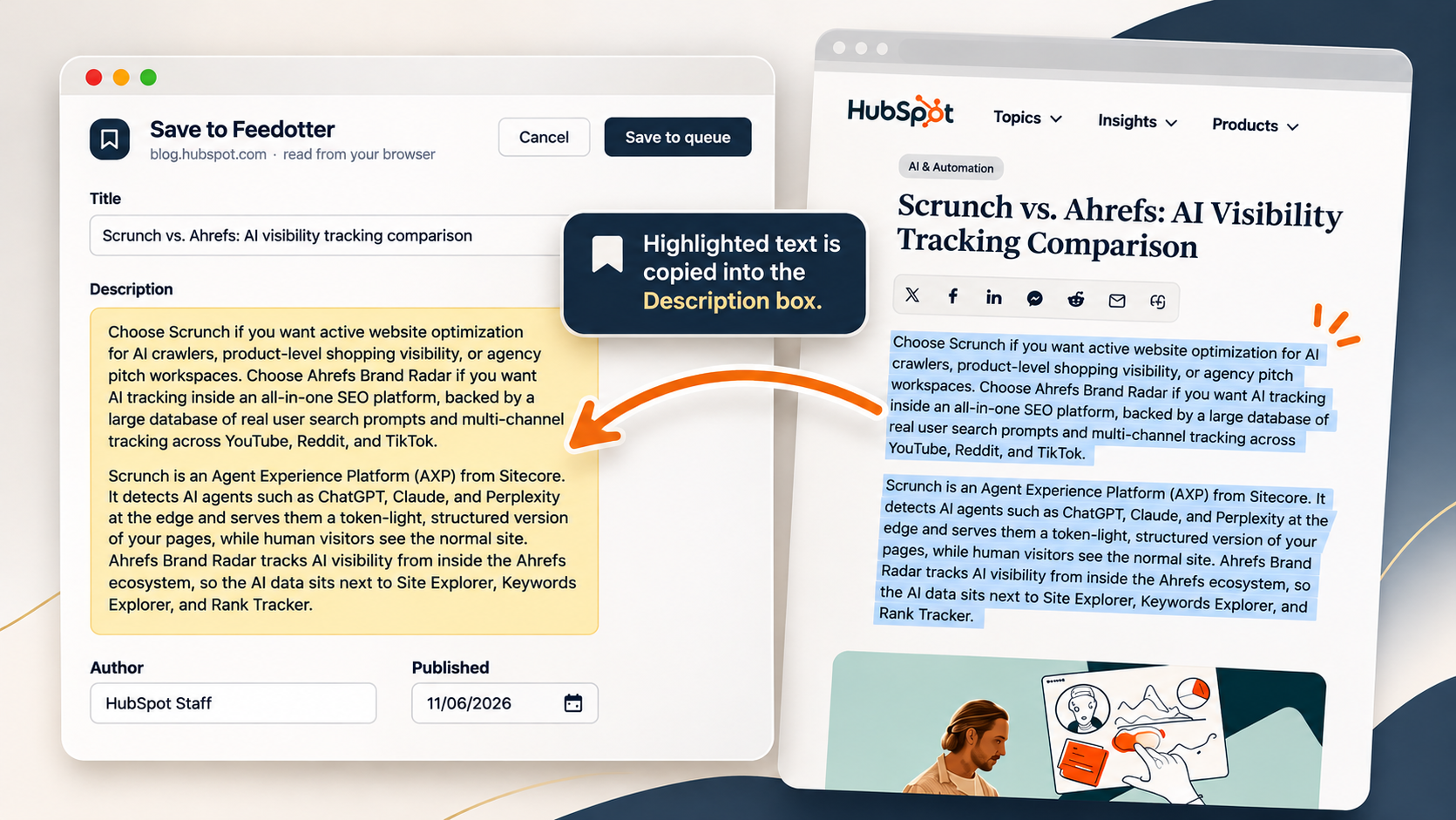
The selected text automatically populates the description field. This is especially useful for editors who like to insert a large chunk of an article within their newsletter (hyperlinks included)!
Depending on how your template is configured, hyperlinks in your description can also carry over into your newsletter.
Get AI-Assisted Title and Description Suggestions
Not every article comes with an ideal headline or description, so we've added AI-assisted suggestions to help you find the right wording.
Title Suggestions
Click Suggestions next to the Title field to see alternative headlines.
Depending on the content, you'll find titles pulled directly from the source as well as AI-generated options.
Description Suggestions
The Description field also includes additional suggestions.
You might see:
- Text you've highlighted on the page
- More descriptions found on the page
- AI-generated short descriptions
- AI-generated longer descriptions
Choose the suggestion you like, click Use, and it will populate the description field.
Choose the Right Image
Images are arguably an important part of newsletter design, but finding the right one can sometimes be a painstaking process.
The bookmark automatically looks for images available on the page and displays them as options for you to choose from.
If the default image isn't great, you can select another available image or paste in an image URL (or choose no image).
This gives you more control over how each article appears in your newsletter without having to search for images separately.
Cleaner URLs
You may have noticed that some webpages have really long URLs with extra tracking information attached.
The updated bookmark automatically removes UTM tracking parameters when you save content, so you don't have to worry about cleaning up those long links yourself.
One less thing to worry about when you're putting your newsletter together.
Everything Goes Into Your Content Queue
Once you've saved an article or piece of content, it goes directly into your Feedotter Content Queue.
Think of the Content Queue as a central place to collect and organize content before deciding where you want it in your newsletters.
You can access your saved content under Settings > My Bookmarks.
From there, you can review saved items, check when they were added, view their source domains, and delete individual items or clear the entire queue.
You can also toggle on User Based Queues if you'd prefer each person on your Feedotter account to have their own collection of saved content rather than sharing a queue.
Add Your Content to Any Curated Newsletter
Once your content is saved, you can access it from any curated newsletter issue you're working on.
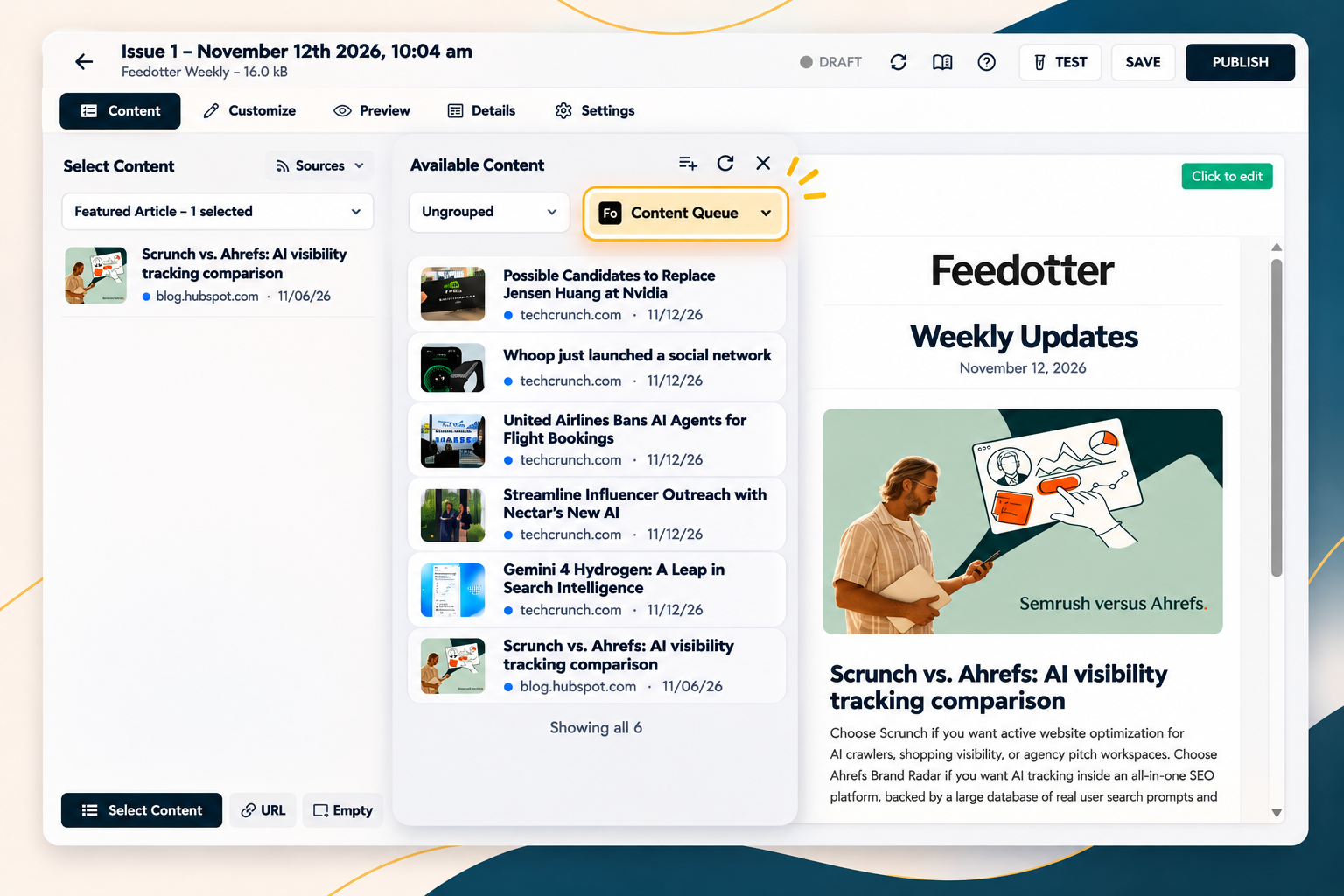
When creating or editing a curated newsletter issue:
- Navigate to the Content tab
- Click Select Content
- Select Ungrouped from the first dropdown
- Select Content Queue from the second dropdown.
- Choose the article you'd like to add to your section
Your bookmarked content will appear alongside your other available content sources, so you can pull content from all your different sources.
A Better Way to Curate Content
One of the best things about the bookmark is that you're not limited to content from your existing feeds or connected sources. Found an interesting article, company announcement, or event while browsing? Just bookmark it and bring it straight into Feedotter!
The best newsletter content isn't always in one place. With our updated bookmark, you can easily grab things you come across online and have them ready to go for your next newsletter. No more copying and pasting everything over manually.

Related posts
View all