

We’ve talked in depth about automated blog subscriptions and how you can strategically use them to amplify the reach of your content while building your email list.
Today, we’re taking a look at how to practically set up an automated blog subscription with Mailchimp, one of the most popular ESPs (Email Service Providers) for businesses of all sizes.
How to Set up a Blog Subscription with Mailchimp
Watch the video tutorial, or follow along with the written walkthrough below.

Step 1: Create Your Signup Form
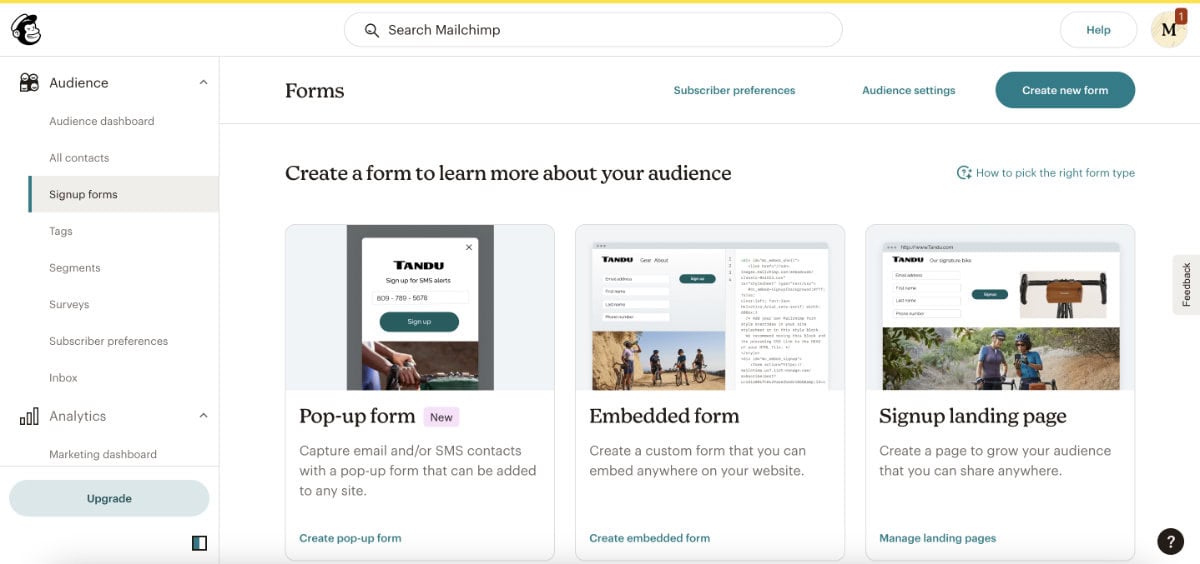
In your Mailchimp account, you’ll want to use the left sidebar to navigate to Audience > Signup Forms, then click on Create New Form.
Here, you’ll be able to choose from the list of available lead generation forms:
- Embedded Form
- Popup Form
- Signup Landing Page
In this example, we’ll use the Embedded Form type, which can be added to any website using an HTML code snippet.
Name your form
Next, you’ll be able to name the form and decide which audience you’d like to add your subscribers to.
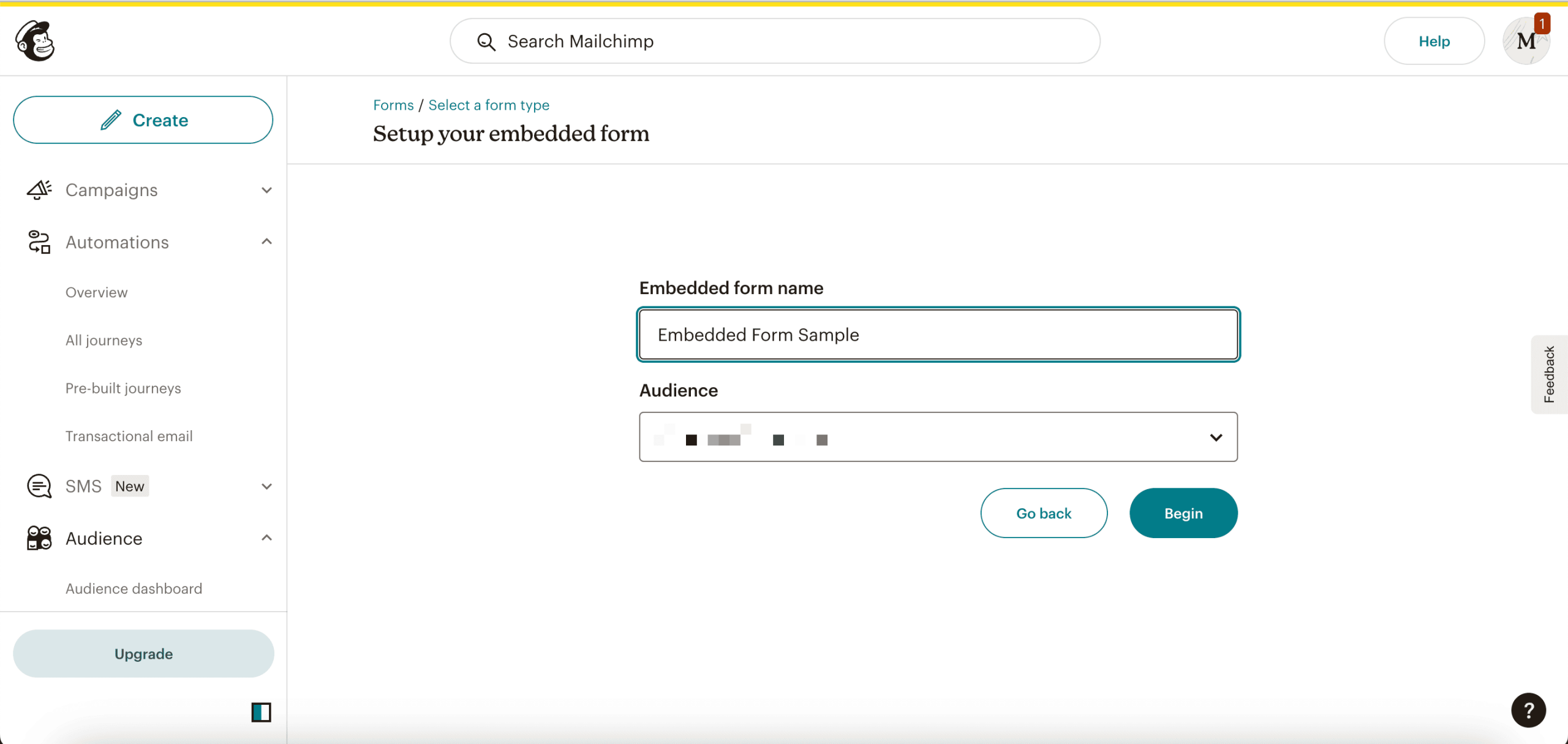
Then, click on the Begin button.
Design Your Form
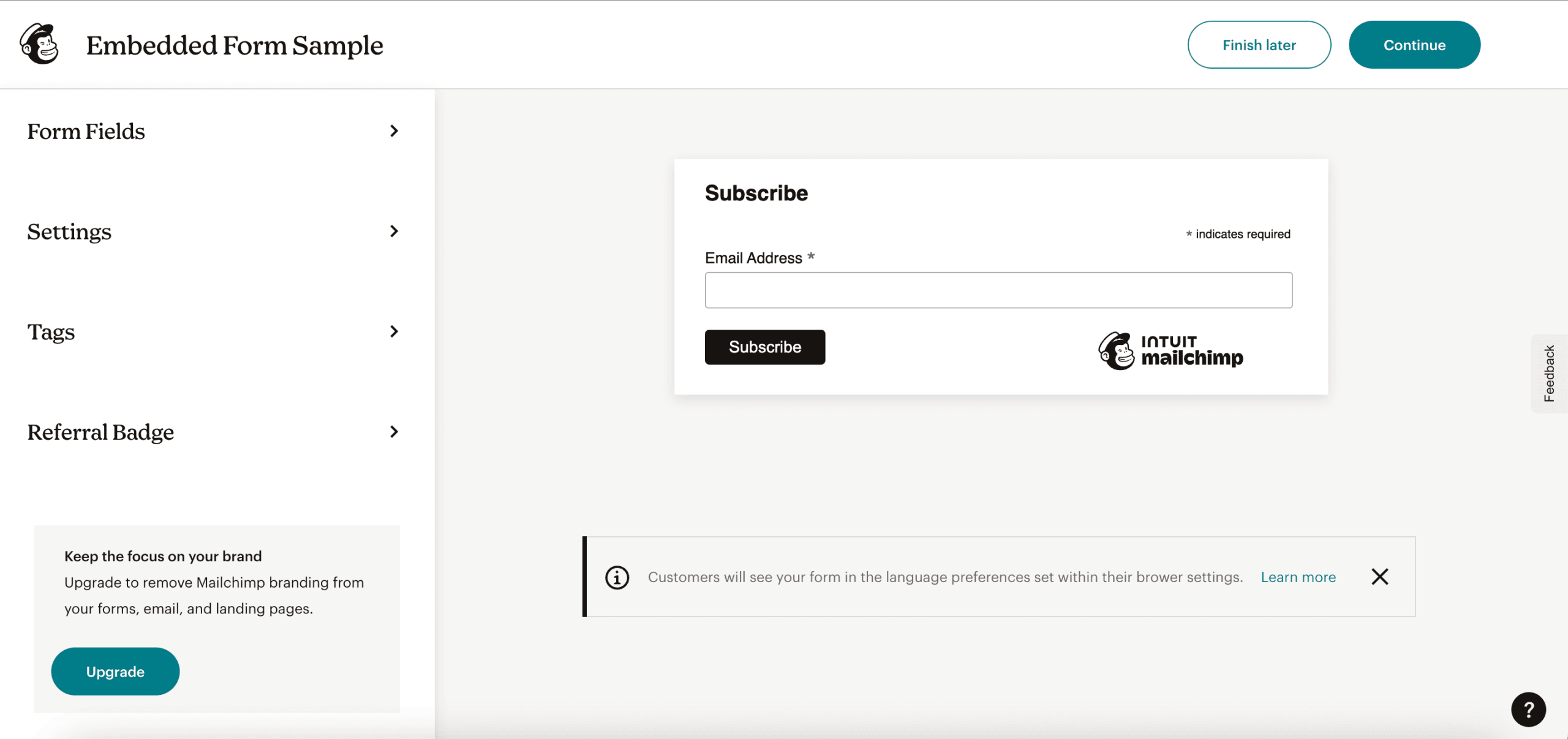
When designing your form, you’ll want to work your way methodically through each of the items on the left sidebar:
- Form Fields: Control the input fields that are visible on your signup form
- Settings: Alter the form title, form width, and additional code preferences
- Tags: Decide which tags you want applied to new subscribers.
- Referral badge: Show/hide the Mailchimp logo (for paid accounts)
A Note on Tags:
In this example, you’ll want to create a tag that’s specific to this opt-in form and that will be used for the sole purpose of triggering the welcome automation, like: Blog_Signup_Welcome
At this point, you might have noticed that layout and visual design options are extremely limited with Mailchimp’s form builders, which can be a huge headache when your goal is to create a cohesive, branded experience for your website visitors.
Fortunately, there are ways to bypass the Mailchimp form design entirely, which we’ll talk about in Step 3…
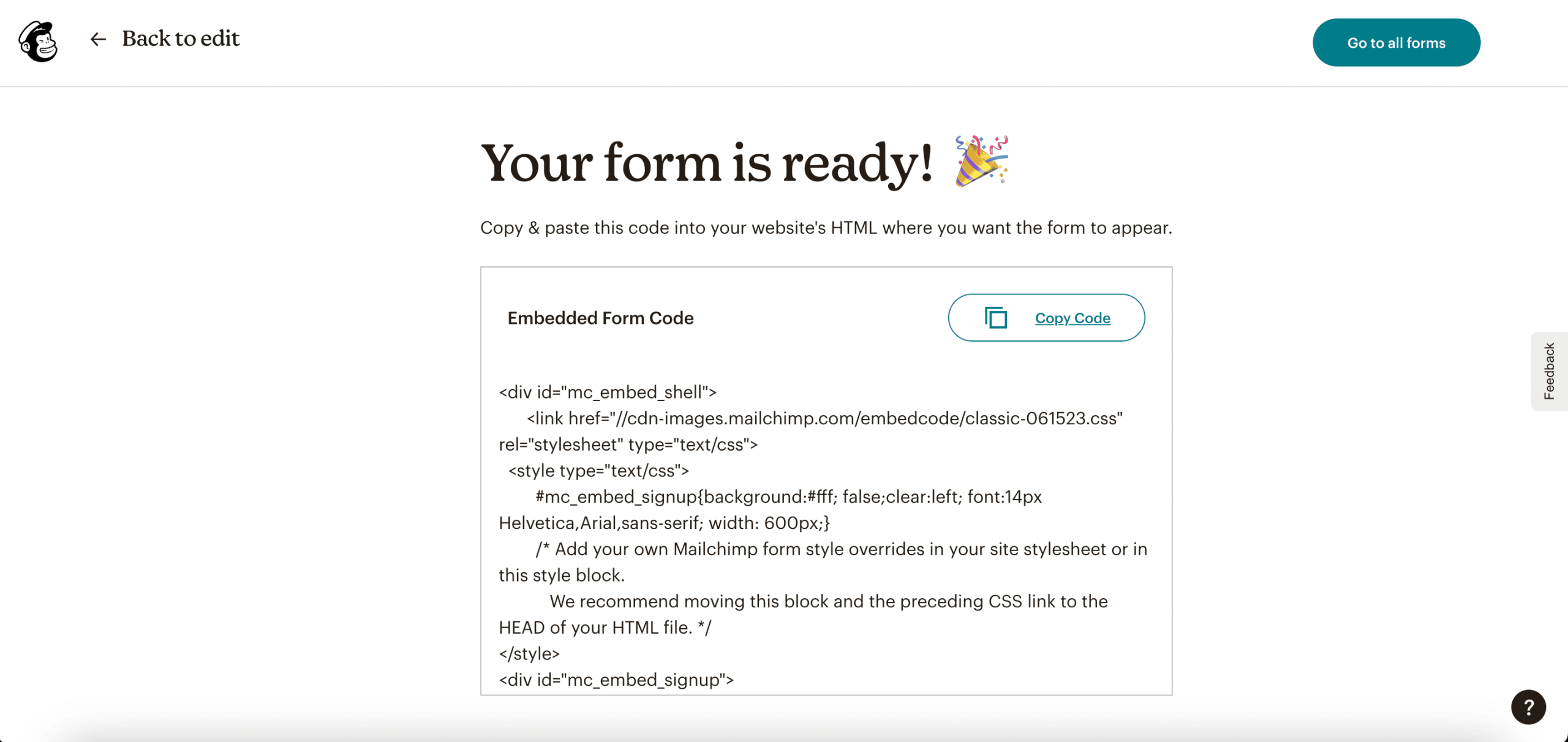
Copy Code Snippet
At this point, you’ll have access to the code snippet that should be added to an HTML block on your website.
Step 2: Create Follow Up Automation
Whenever you gain a new subscriber through your blog opt-in form, you’ll want to create a welcome email that automatically sends out the moment they’re added to the list.
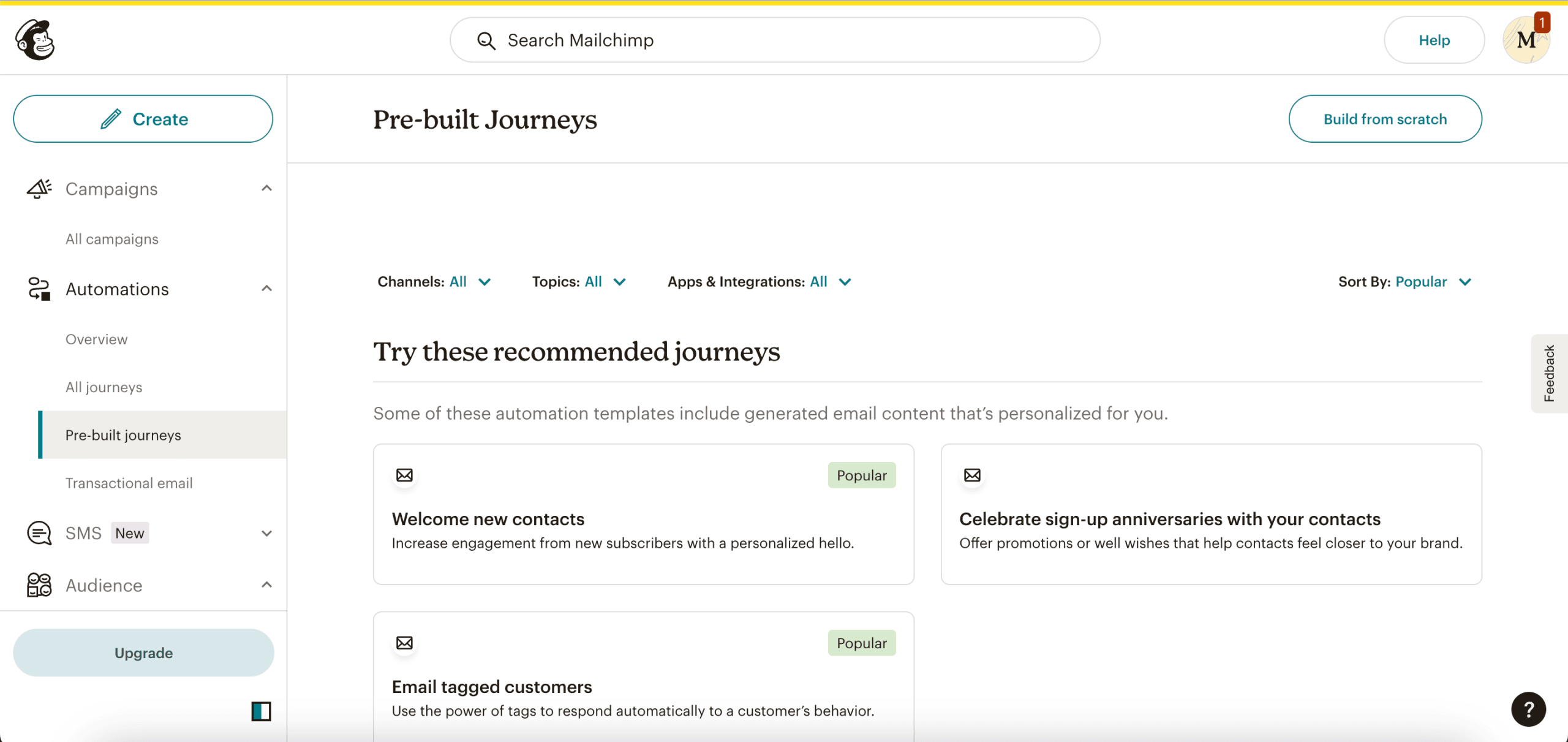
To do this, head to Automations > Pre-built journeys and click on the Build from scratch button in the top right corner.
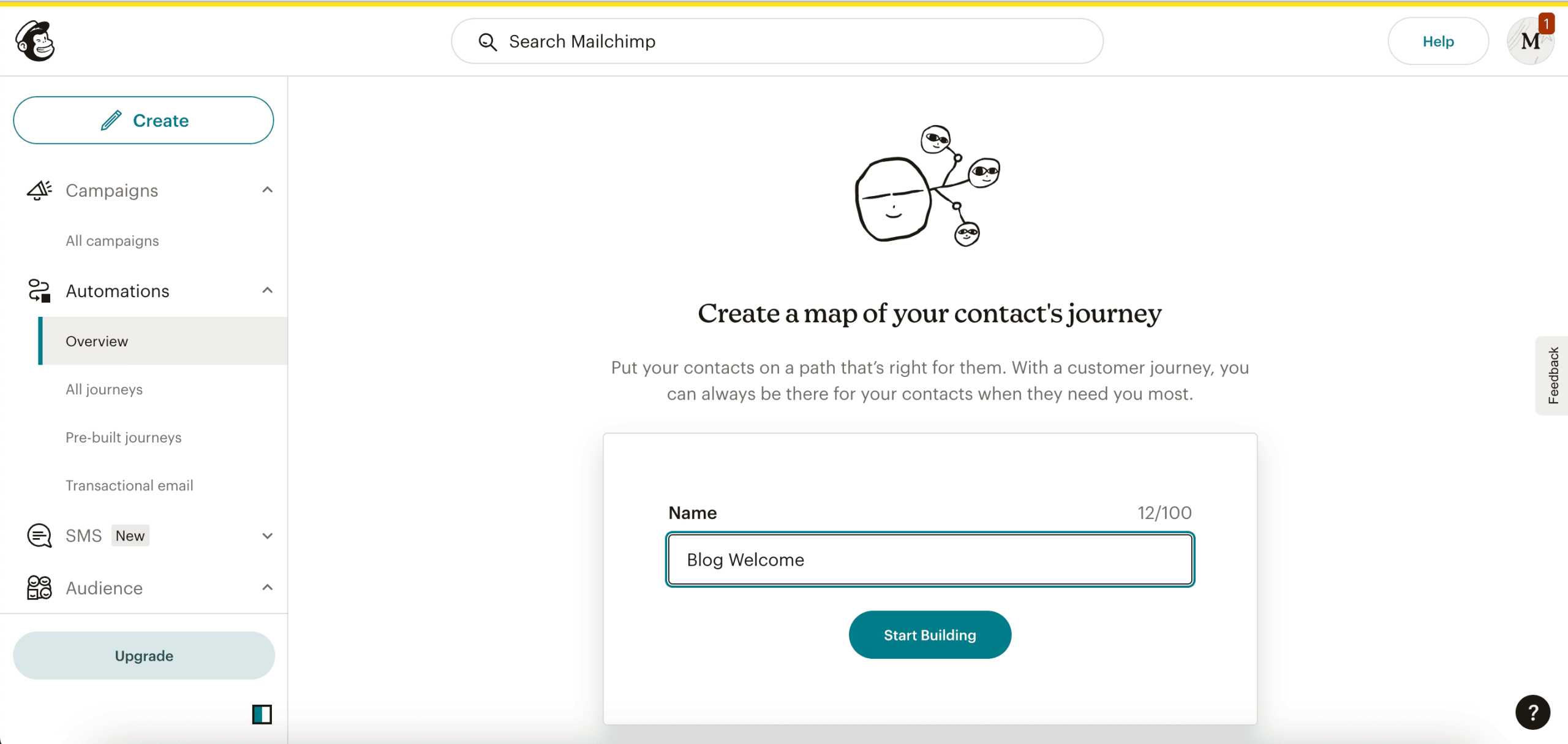
Choose a name for this automation, then click Start Building.
Since we want the welcome email to send as soon as someone subscribes to the form, we’re going to trigger this automation using the same tag that we designated when setting up the form.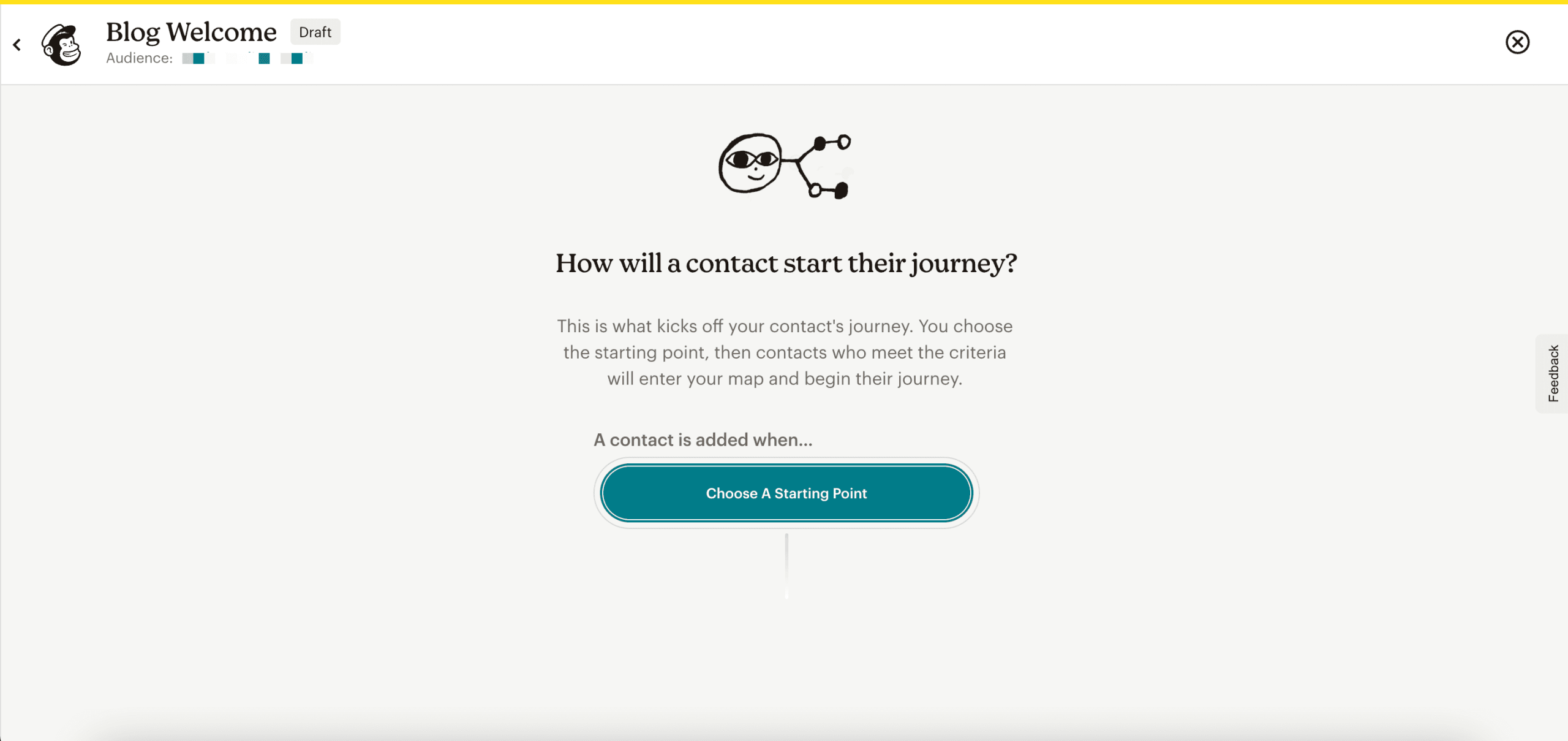
Go to Contact Activity > Tag Added, then select the tag that you created in Step 1.
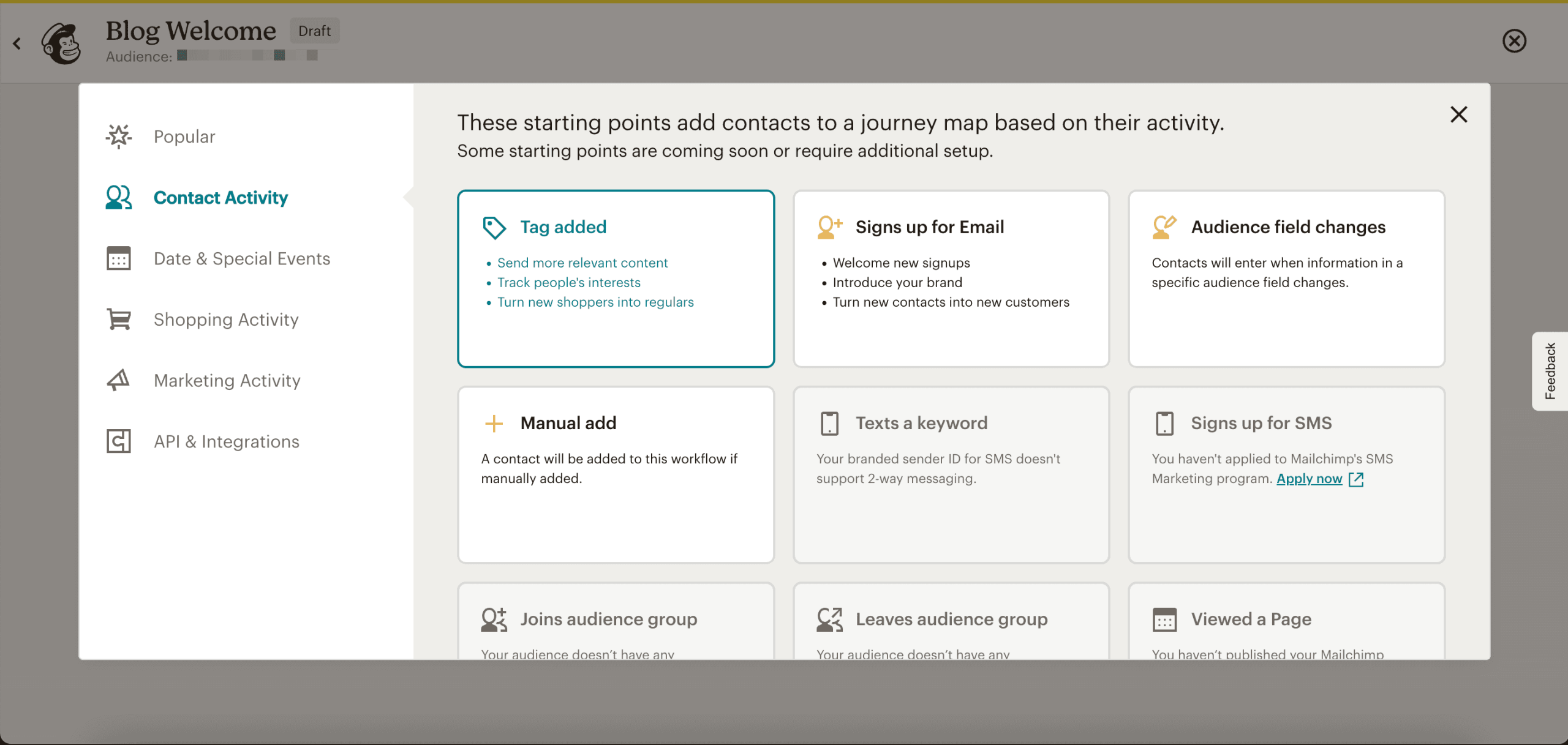
Next, you’ll want to add a journey point so that you can immediately send a welcome email to your new subscriber.
Once this is done, your automation should look like this:
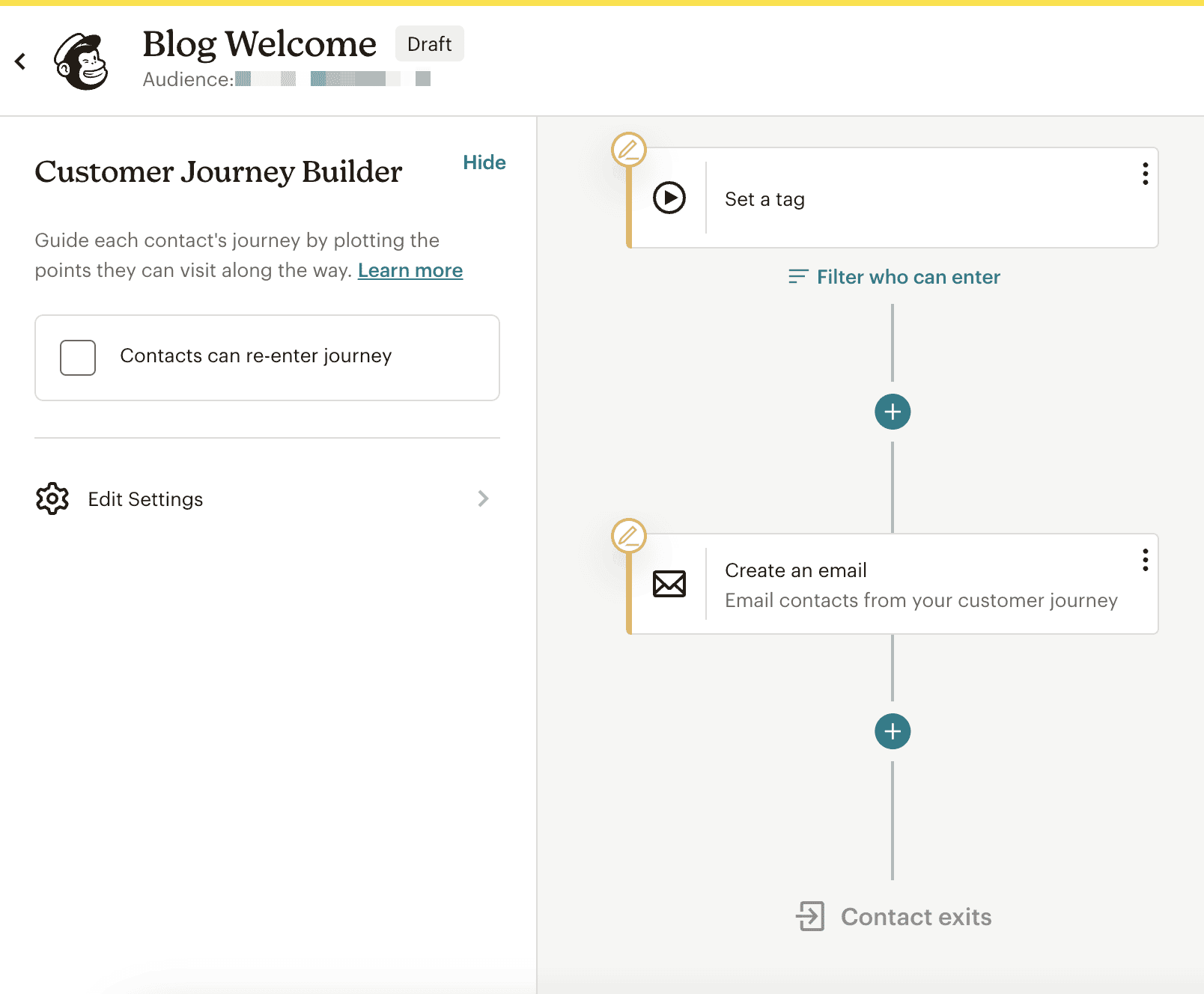
Additional steps you can add include:
- Add additional tags to subscribers that will include them in your segment of newsletter subscribers
- Send a full welcome email sequence (with multiple emails sent over a span of time) designed to warm up new subscribers
- Conditional logic, so you can tailor your email content based on user tags or activity
Step 3: Add the Signup Form to Your Site
With your form and follow up automation set up, you’re ready to add the signup form to your website.
How you accomplish this will look different, depending on what CMS you’re using.
While you can certainly use the embed code Mailchimp gives you and add that to your website, there are some ways to elevate the design and layout of your form using your CMS or a third-party plugin.
Start by checking for a direct integration
Mailchimp has an Integrations directory that makes it super easy to find out if there’s already a direct integration available for you to use. (Squarespace, Wix, WordPress, and Shopify are just a few of the options on this list.)
If you’re using Squarespace or Shopify, for example, you can build your forms directly in your website, and integrate the form with Mailchimp via your site settings.
Use a third-party plugin for optimized signup forms
If you’re already using a Wordpress opt-in plugin like OptinMonster, Gravity Forms, etc., you can integrate the plugin form builder directly with Mailchimp, which then allows you to use the plugin form builder to design and insert your blog subscription form, and then send all signups to your Mailchimp account.
Step 4: Test Your Setup
Once your opt-in form is live on your site, you’ll want to do a few different test submissions in an incognito window, a different browser, and on your mobile device, to cover the most basic use cases that website visitors might encounter.
When you send a test submission through your form, you’ll want to check that the email was properly added to your Mailchimp account (along with any tags that you designated).
You’ll also want to check your inbox to make sure that the welcome message was delivered within a few minutes after submitting the form.
And that’s it.
Setting up an automated blog subscription with Mailchimp is fairly straightforward, although it does require time and strategic thought to ensure that it’s truly designed to convert from opt-in to welcome sequence.
Bonus: Pro-Level Automation Tips
One of the best parts about automation sequences like this blog newsletter setup is that it’s fully, completely automated. All you have to do is set it up once, and then it runs on autopilot in the background, freeing up your time for higher level projects.
…With one caveat:
You still have to build and send your newsletters every time you want a non-automated email to go out.
The hours for this part of the process add up quickly, especially if you’re a content-rich publishing company like Ziff Media Group, for example, which sends over 50 newsletters out each week.
If this is an area you want to grow and scale, you’ll want to consider adding a Mailchimp integration like Feedotter, which will allow you to build content-rich newsletters in minutes, and send them out quickly on a schedule.
Feedotter is a content curation and newsletter automation tool that supports the newsletter sending process in 3 main ways:
#1: Fully automated RSS-powered emails
If your blog has an RSS feed, you can plug it directly into Feedotter and set it up so that Feedotter automatically builds and sends your RSS emails on a schedule.
Learn more about the benefits of using Feedotter for your RSS email sends vs.
#2: Content curation from top website sources
If you’re working with multiple content sources (blog, YouTube channel, social media, and more), Feedotter can automatically curate your latest posts and videos—and have them ready to be added to your newsletters with a single click. All you have to do is decide which pieces you want in your newsletter, and Feedotter takes care of reformatting the images and text to fit your newsletter design template.
#3: Easy sending through Mailchimp
If Mailchimp is your primary ESP, all your integrated tools should defer to it as the “hub” of your marketing activity. Even though Feedotter allows you to quickly build and send emails, it actually uses the integration to send the email to Mailchimp for the actual sending. Deliverability rates are not affected by building an email in Feedotter versus in Mailchimp itself.
Get a personalized walkthrough of Feedotter
Book a 1:1 demo to see how you can elevate and scale your newsletter process with Feedotter.